Configure a WPA2 Enterprise WLAN on the WLC
SNMP and RADIUS
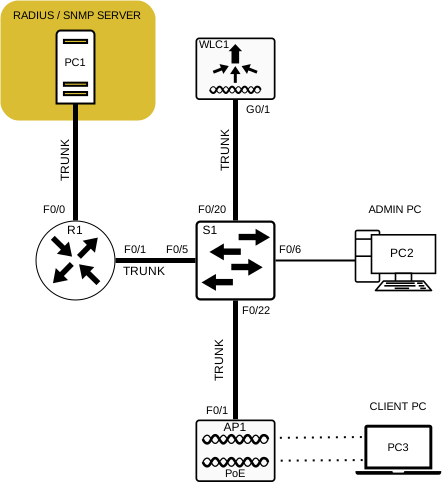
As per the diagram, PC1 is a server running SNMP (Simple Network Management Protocol) and RADIUS (Remote Authentication Dial-In User Service) software.
SNMP is used to monitor and log the network. This can be achieved by configuring the WLC to forward all SNMP Log Messages which are known as SNMP Traps to the SNMP Server PC1.
The same Server PC1 is also a RADIUS server that will serve as the primary WLAN Authentication method and also serve as an AAA Server (Authentication, Authorization, and Accounting. By opting for such a setup, users will have to enter their own username and password credentials to Authenticate to the WiFI rather than entering a publicly known pre-shared key.
Thanks to such method, individual user access can be tracked and audited if required. User accounts can be added and/or removed in a central location resulting in ease of user management and monitoring.
A RADIUS server is required for WLANs that use WPA2 Enterprise authentication.
Configure SNMP Server Information
On Cisco WLCs, SNMP configuration is covered through the following 7 steps:
- Click on the “MANAGEMENT” tab
- Click “SNMP” to expand its sub-menus
- Click “TRAP RECEIVERS” to see the existing SNMP Servers
- Click “NEW” to configure the SNMP Trap
- Enter the SNMP Community Name
- Enter the IP Address of the SNMP Server
- Click “Apply“
The WLC will now start forwarding SNMP log messages to the SNMP server specified.
Configure RADIUS Server Information
In such a case, Authentication will be handled by the RADIUS server running on PC1.
To configure the WLC with the RADIUS server information, click the SECURITY tab > RADIUS > Authentication. No RADIUS servers are currently configured. Click New… to add PC-A as the RADIUS server.
On Cisco WLCs, RADIUS Server configuration is covered through the following 7 steps:
- Click on the “SECURITY” tab
- Click “RADIUS“
- Click “AUTHENTICATION“
- Click “NEW” to add a RADIUS Server
- Enter the IP Address of the RADIUS Server
- Enter the Shared Secret to be used between the server and the WLC and not the clients connection
- Click “Apply“
Once the changes are applied, the list of configured RADIUS Authentication Servers will refresh with the new server listed, and clients will start to authenticate and associate to the network via the RADIUS Server specified.
Configure a new Interface
On Cisco WLCs, a VLAN Interface configuration is covered through the following 8 steps:
- Click on “CONTROLLERS”
- Click on “INTERFACE“
- Click on “NEW“
- Configure the VLAN name and ID
- Configure the port and Interface addressing
- Configure the DHCP server address
- Apply the changes and Confirm
- Verify the Interfaces
Configure a DHCP Scope
On Cisco WLCs, a DHCP Scope configuration is covered through the following 5 steps:
- Click on “INTERNAL DHCP SERVER“
- Click on “DHCP SCOPE“
- Click on “NEW“
- Name the newly created DHCP scope
- Verify the new DHCP scope in the list
- Configure and enable the new DHCP scope
- Verify the enable DHCP scope
Configure a WPA2 Enterprise WLAN
By default, any newly created WLANs on the WLC will use WPA2 with AES (Advanced Encryption System). 802.1X is the default key management protocol utilized to communicate with the RADIUS Server.
At this stage, the only thing left to do is to create a new WLAN to use interface VLAN (ex.3).
On Cisco WLCs, Configuring a WLAN to use a VLAN Interface is covered through the following 12 steps:
- Click “WLANS“
- Click on “GO” next to the “CREATE NEW” dropdown
- Configure the WLAN Name and SSID
- Click the “ENABLED” checkbox
- Choose “VLAN 3” and click “APPLY” and “OK” on the dialog
- Click the “SECURITY” tab
- Verify that “AES” is the encryption method
- Verify that “802.1X” is the authentication protocol
- Click “AAA SERVERS” tab
- Select the RADIUS server with the right IP from the dropdown next to “Server 1”
- Click “APPLY“
- Verify the new WLAN is available.