WLC Topology
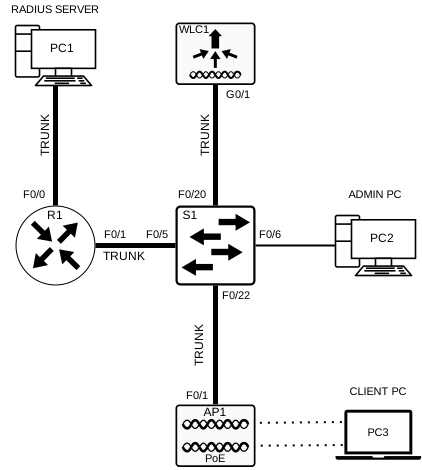
| Device | Interface | IP Address | Subnet Mask |
|---|---|---|---|
| R1 | F0/0 | 192.168.10.1 | 255.255.255.0 |
| R1 | F0/1.1 | 192.168.100.1 | 255.255.255.0 |
| S1 | VLAN1 | DHCP | |
| WLC | G0/1 MGMT | 192.168.100.254 | 255.255.255.0 |
| AP1 | F0/1 | 192.168.100.3 | 255.255.255.0 |
| PC1 | NIC | 192.168.10.10 | 255.255.255.0 |
| PC2 | NIC | DHCP | |
| PC3 (WiFI) | WiFI NIC | DHCP |
The Access Point is a controller-based AP, unlike an autonomous AP. Controller-based Access Points require no initial configuration and are usually called LAPs (Lightweight Access Points) since they use the LWAPP (Lightweight Access Point Protocol) to communicate with the WLC (WLAN Controller). Such a method is very useful in large environments where many Access Points are required. This is ideal since every time an AP is added to the network, each of the new APs is automatically configured and managed by the WLC.
Login to the WLC
Configuring a WLC is not much different from configuring a Wireless Router. The difference is in it’s capability to control APs and provide more services and management functionalities.
Basically, a WLC will be assigned an IP Address and you can login to that specific WLC by browsing to that IP Address which is very similar to logging into a Wireless Router.
Each WLC is different from another an will of course show a different GUI representation than others but the functionality is the same as others except from some extra features some WLCs may offer.
Configure a WLC
WLANs have ports and interfaces too. Ports act as the link for physical connections to the wired network, in other words Switch Ports. Just like other devices, Interfaces are virtual.
Each interface carrying traffic from a WLAN is configured on the wLC as a different VLAN. Each physical port can support many Access Points and Wireless LANs. The ports on the WLC are practically trunk ports that. can carry traffic from multiple VLANs to a switch for distribution to multiple Access Points. Each and every Access Point can also support multiple WLANs.
Basic WLAN setup on the WLC is covered through the following 7 steps:
- Create the WLAN
- Apply and Enable the WLAN
- Select the Interface
- Secure the WLAN
- Verify the WLAN is Operational
- Monitor the WLAN
- View Wireless Client Detail