Mitigating DHCP attacks
An attacker may use the DHCP Starvation attack to create a Denial of Service (DoS) for connecting clients. Such an attack can be performed using tools such as Gobbler. Tools like Gobbler use a unique source MAC Address for each DHCP request created, thus this can be effectively mitigated by using port security as explained earlier.
Apart from DHCP Starvation attacks, one can also perform DHCP spoofing attacks which require more protection. Gobbler is able to be configured in such a way to use the actual interface MAC Address as the source address, but specify a different Ethernet address in the DHCP payload. Port Security would become ineffective if such a method is used since the source MAC Address will always be legit.
To mitigate DHCP Spoofing attacks, we can implement DHCP snooping on trusted ports.
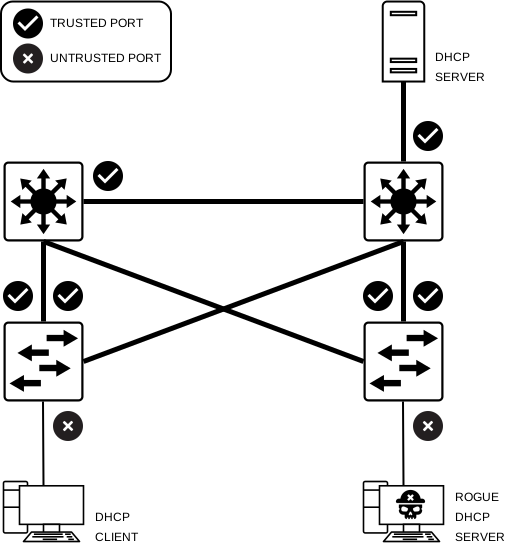
Once DHCP Snooping will be enabled, the Rogue DHCP Server will be on an untrusted port. All interfaces will be treated as untrusted by default.
On the other hand, trunk-links and ports which are directly connected to the legit DHCP server will be “Trusted”. Such interfaces must be explicitly configured as “Trusted”.
The DHCP table will include the source MAC Address of the device connected to an untrusted port and the IP Address assigned to it by the DHCP server. Both of these addresses (MAC and IP) are bound together, thus such a table is referred to as the “DHCP Snooping Binding Table”.
DHCP Snooping Implementation
DHCP Snooping can be implemented as follows:
| Step 1 |
| Enable DHCP Snooping using the |
| Step 2 |
| Configure Trusted Interfaces |
| Step 3 |
| Limit the number of DHCP Discovery messages that can be received per second on Untrusted Interfaces |
| Step 4 |
| Enable DHCP Snooping by VLAN or VLAN Range |
Enable DHCP Snooping using the
S1(config)# ip dhcp snooping
Configure Trusted Interfaces
S1(config)# interface range [interfaces]
S1(config-if-range)# ip dhcp snooping trust
Limit the number of DHCP Discovery messages that can be received per second on Untrusted Interfaces
S1(config)# interface range [interfaces]
S1(config-if-range)# ip dhcp snooping limit rate [number]
Enable DHCP Snooping by VLAN or VLAN Range
S1(config)# ip dhcp snooping vlan [vlan / vlan-range]
DHCP Snooping Complete Configuration Example
S1> enable
S1# configure terminal
S1(config)#
S1(config)# ip dhcp snooping
S1(config)#
S1(config)# interface range fa0/1 - 2
S1(config-if-range)# ip dhcp snooping trust
S1(config-if-range)# exit
S1(config)#
S1(config)# interface range fa0/3 - 24
S1(config-if-range)# ip dhcp snooping limit rate 1
S1(config-if-range)# exit
S1(config)#
S1(config)# ip dhcp snooping vlan 3,5-9
S1(config)# exit
S1#
– We enabled DHCP Snooping using the global config command
– FastEthernet ports 0/1 to 0/2 are Trunk-Links so they were configured as “Trusted”
– FastEthernet ports 0/3 to 0/24 are Access-Links where only one workstation is allowed to be connected using one particular MAC Address, so we are limiting the number of DHCP discovery messages that can be received per second on such interface to 1
– We are enabling the configured DHCP Snooping mechanism on VLANs 3, 5, 6, 7, 8, and 9